Guide to using the Cavissima site
Our website is evolving!
While retaining Cavissima's essential functionalities – the purchase and storage of fine wines –
It now benefits from a redesigned interface for smoother navigation.
Check out our guide to discover all the new features.
Access your Customer Area
1 - Access your Customer Area by clicking on the icon located at the top right of your screen.

2 - A login page will appear in your browser where you will be asked to enter your email address.
Make sure you enter the address you used when you registered or the one associated with your account.
Once your email address has been validated, a 6-digit security code will be sent to you by email.
Enter it manually in the field provided for this purpose on the login page.
This system allows you to secure access to your personal space without a password. Once the code is correctly entered, you will be automatically redirected to your account.

3 - You then access your personalized customer area .
From this space, you can view your order history, manage your profile information, and also access your online wine cellar. The latter allows you to view all the wines you have purchased, track their performance, and easily manage your collection.

View order details
1 - Access your orders by clicking on My Orders in the top menu.
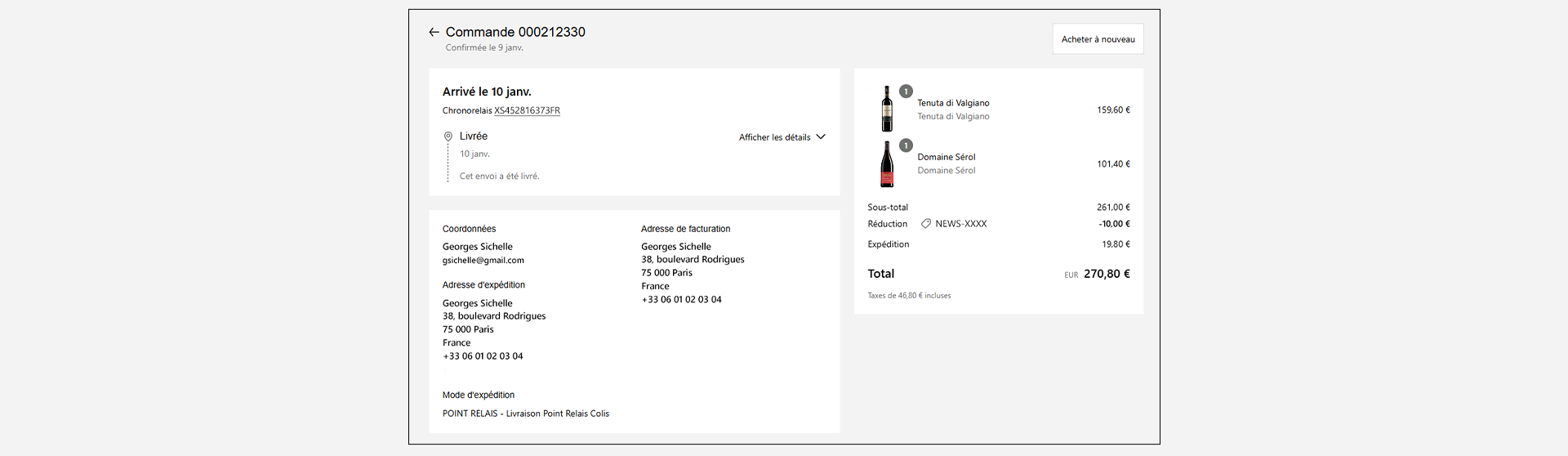
2 - You are redirected to the page dedicated to your orders .
On this interface, you will find all your orders, whether they are being processed or already completed.
Each order is detailed with its date, contents and any delivery or storage information.
This allows you to easily track the progress of your purchases and keep a complete record of your history.

3 - To view the details of an order, simply click on the corresponding block.
Once selected, a detailed view will be displayed with all the useful information: order date, delivery or storage details, precise content (references, quantities...), processing status, as well as any additional information.
This allows you to track each order transparently, step by step.
View my profile and portfolio
1 - Access your Profile by clicking on the icon located in the top right corner of your screen.

2 - A drop-down tab will then appear in the upper right corner of the screen.
From this menu, you can access several options related to your account:
- viewing and modifying your personal profile,
- managing your settings,
- or even the disconnection of your session.
To continue, click on Profile to view the personal information associated with your account.

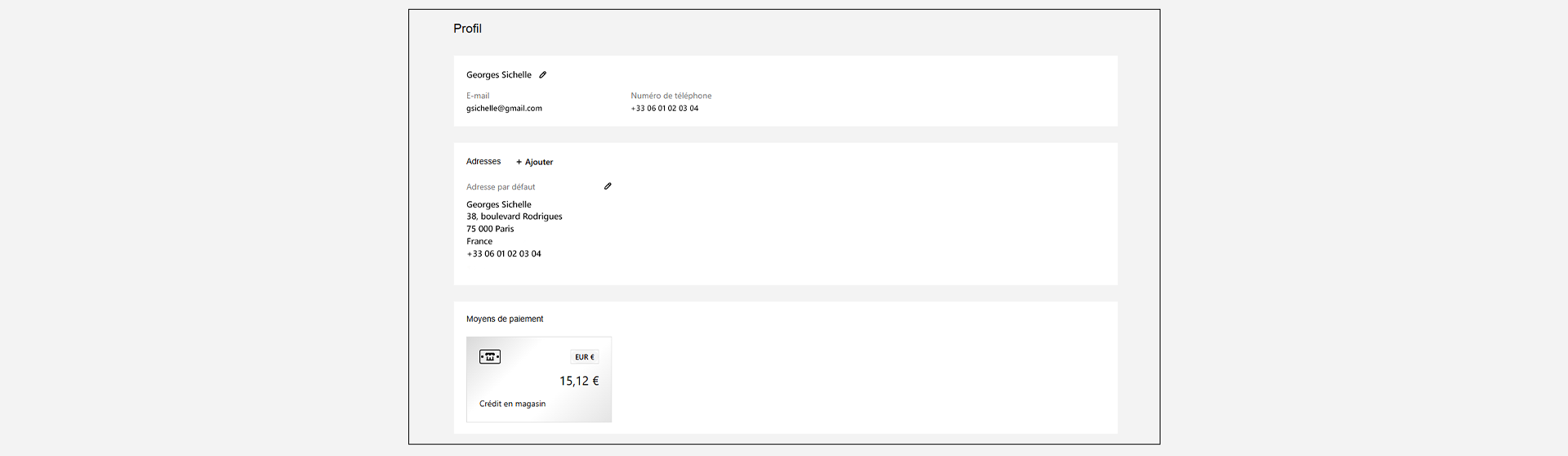
3 - You access your profile, where all your personal information is centralized.
You will find there, among other things:
- your first and last name,
- your phone number,
- Your email address,
- your default postal address used for delivery or billing,
- as well as your Client Portfolio . You can also access your Client Portfolio by clicking directly on the menu located at the top of your screen.
This space allows you to easily view, update or correct your data at any time.
View my online wine cellar
1 - Access your online wine cellar from the menu located at the top of your screen.

2 - You access your online wine cellar, dashboard of your wine collection.
In this space, you can view all the references you own:
- Wine information (castle or estate, vintages, appellation...),
- their packaging (bottle, magnum, case, carton, etc.),
- the quantities.
You also have the option of having your wine taken out of the cellar for home delivery.
This tool allows you to manage your wine cellar independently, simply and securely.